One AI Assistant - every WordPress task

Manage your WordPress and WooCommerce sites with SiteGround's AI Agent and turn hours of admin work into minutes of conversation.
What if managing WordPress sites was as easy as having a chat
Works on any WordPress host
Multiple sites management
Built-in safety controls
20+ years of WP expertise

Everything you need to do is one chat away

The AI agent with one of the widest ranges of WordPress management capabilities.

Content management

Create, edit, and publish posts and pages. Manage categories, tags, and media. Moderate comments. All through a simple chat with AI.

WooCommerce operations

Create and update products in bulk, manage orders, track sales, translate the entire product catalogue, and set pricing across hundreds of SKUs in one prompt.

Site maintenance

Install, update, and audit plugins & themes. Manage WordPress site settings, user accounts, and permissions – all from a single place, with nothing but your words.

AI Agent for WordPress managing site settings and page updates in WordPress Admin

SEO optimization

Generate and manage meta titles, descriptions, keywords, and image alt text. Bulk-optimize hundreds of media files with consistent keyword usage in one chat.

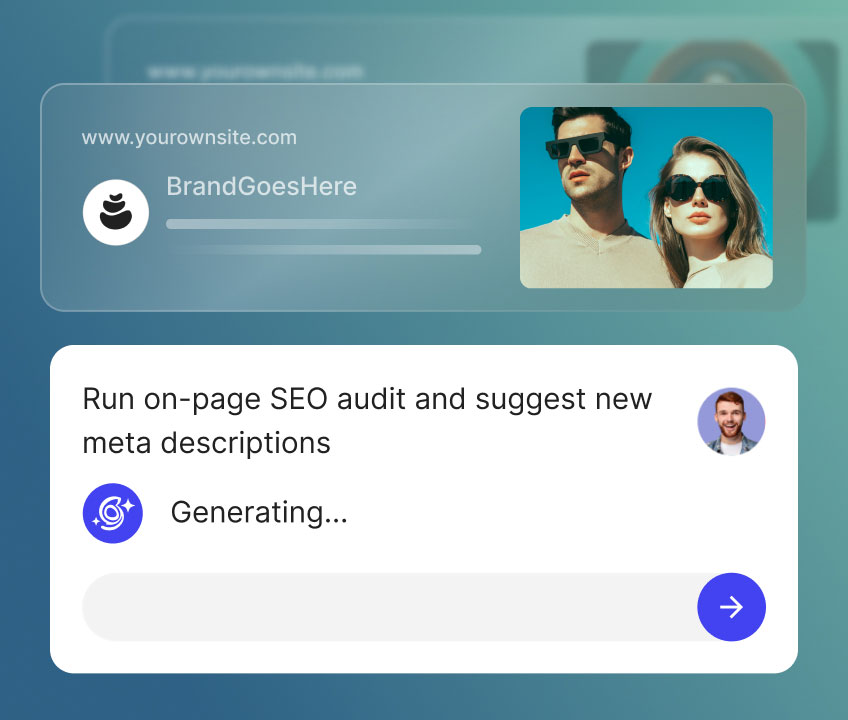
AI agent for WordPress, running an on-page SEO audit and generating meta descriptions by chat

User management

Create accounts, reset passwords, modify roles, audit access across your sites. When someone leaves the team, remove their access with a single prompt.

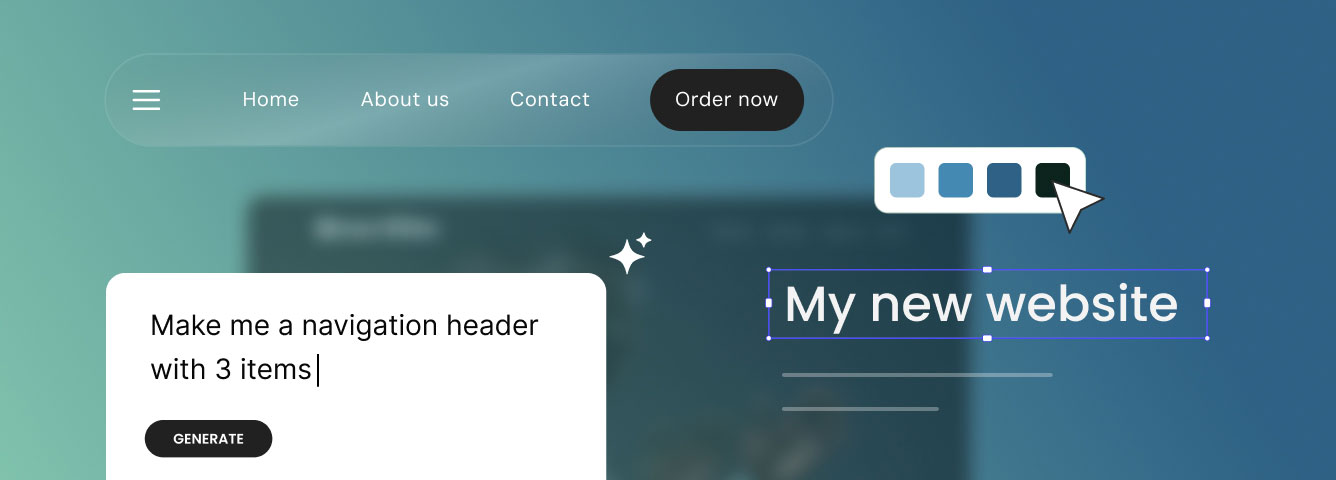
AI agent for WordPress, creating site navigation and menus by chat

Complete Workflows

Delegate entire processes to AI - build site architecture with menus, restructure taxonomies, run seasonal promotions, and other complex tasks.

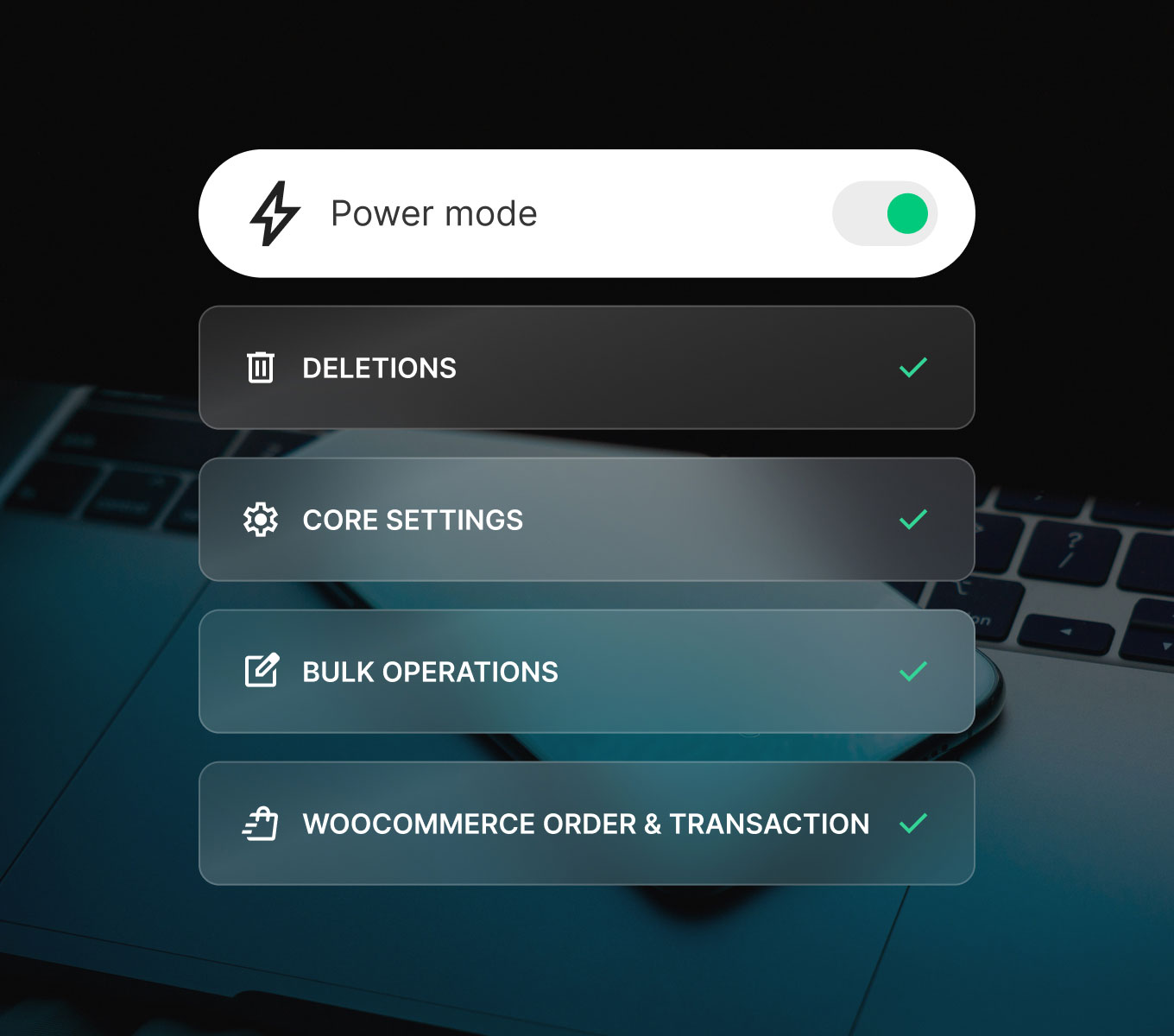
Power Mode safety controls in SiteGround AI Agent for WordPress for deletions, core settings, and bulk operations

Enable Power mode to unlock the agent’s superpowers.

When a high-impact action is needed, the agent stops and asks for your explicit permission before proceeding. Enable “Power Mode” and unlock the agent's most advanced capabilities - deleting data, modifying core configurations, running bulk updates, managing WooCommerce operations, and other high-impact actions. You stay in the driver's seat while the AI handles the heavy lifting.

Manage multiple sites in bulk in minutes

Connect all your WordPress installations, no matter where they're hosted, and manage them altogether with one AI prompt. Roll out updates, add users, standardize settings, or push content changes across your entire portfolio from a single conversation.

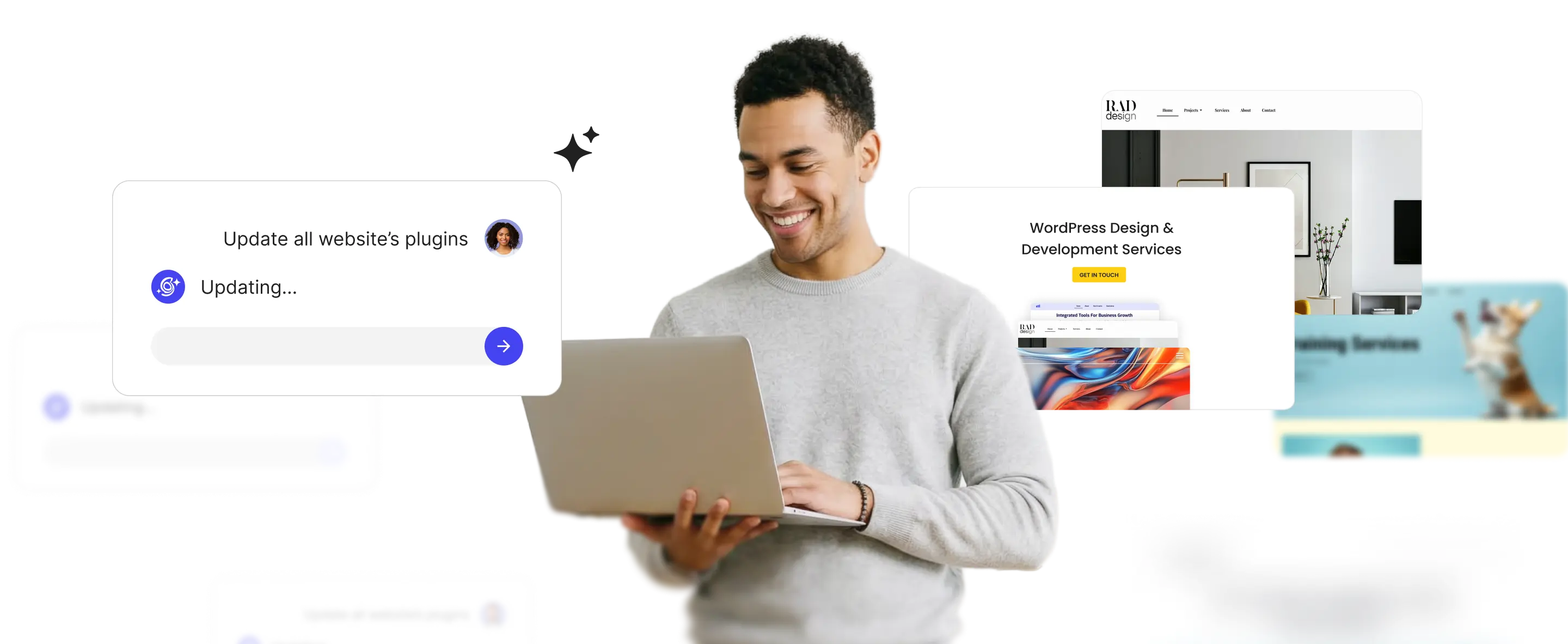
AI Agent for WordPress running bulk plugin updates across multiple websites from one chat prompt

Discover a complete AI workspace for your business

The AI agent for WordPress is powered by AI tokens available through SiteGround AI Studio plans. Sign up to activate your agent and discover an entire AI-powered productivity platform.

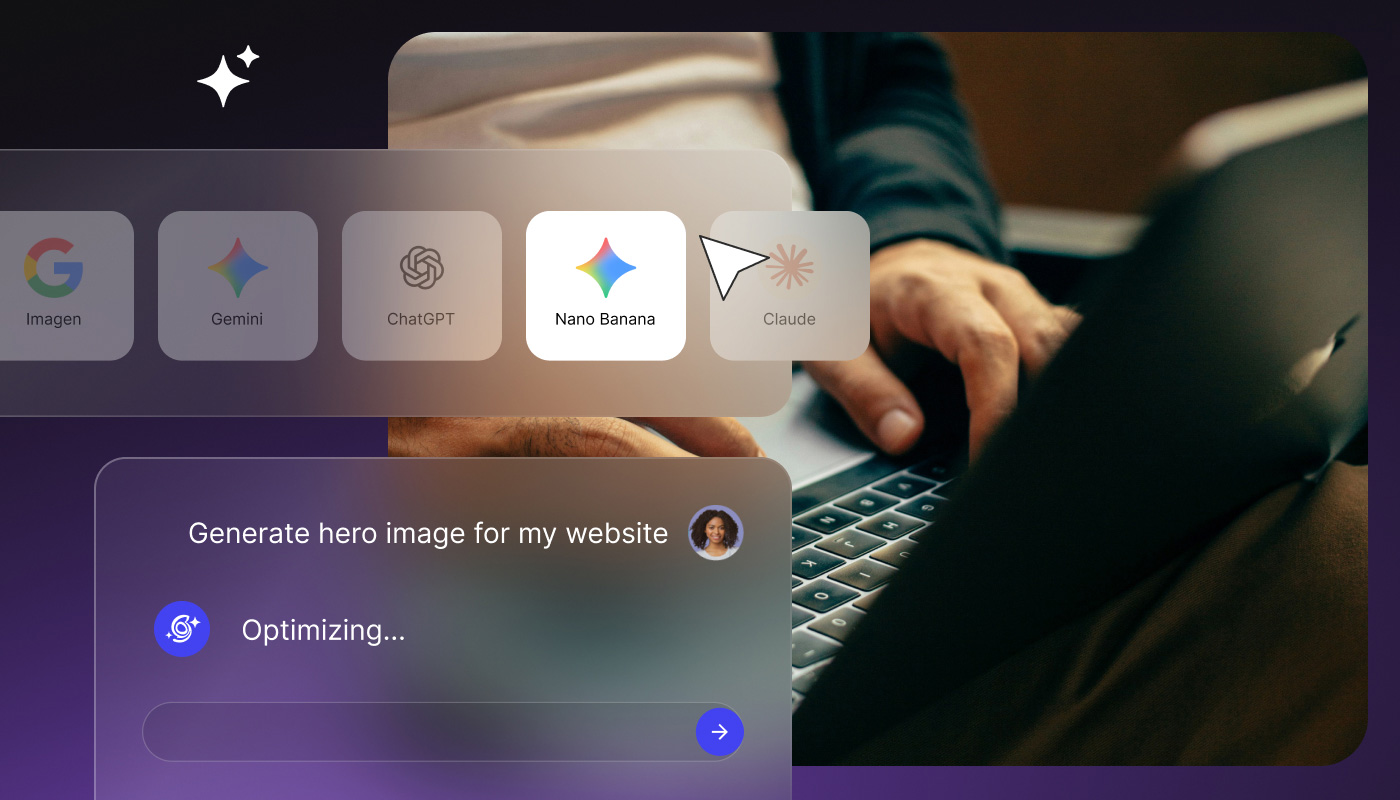
SiteGround AI Studio model picker (ChatGPT, Gemini, Claude) generating a website hero image from a chat prompt

Chat with leading AI models

One place to access ChatGPT, Gemini, Claude, and more. No need for multiple subscriptions or platform hopping.

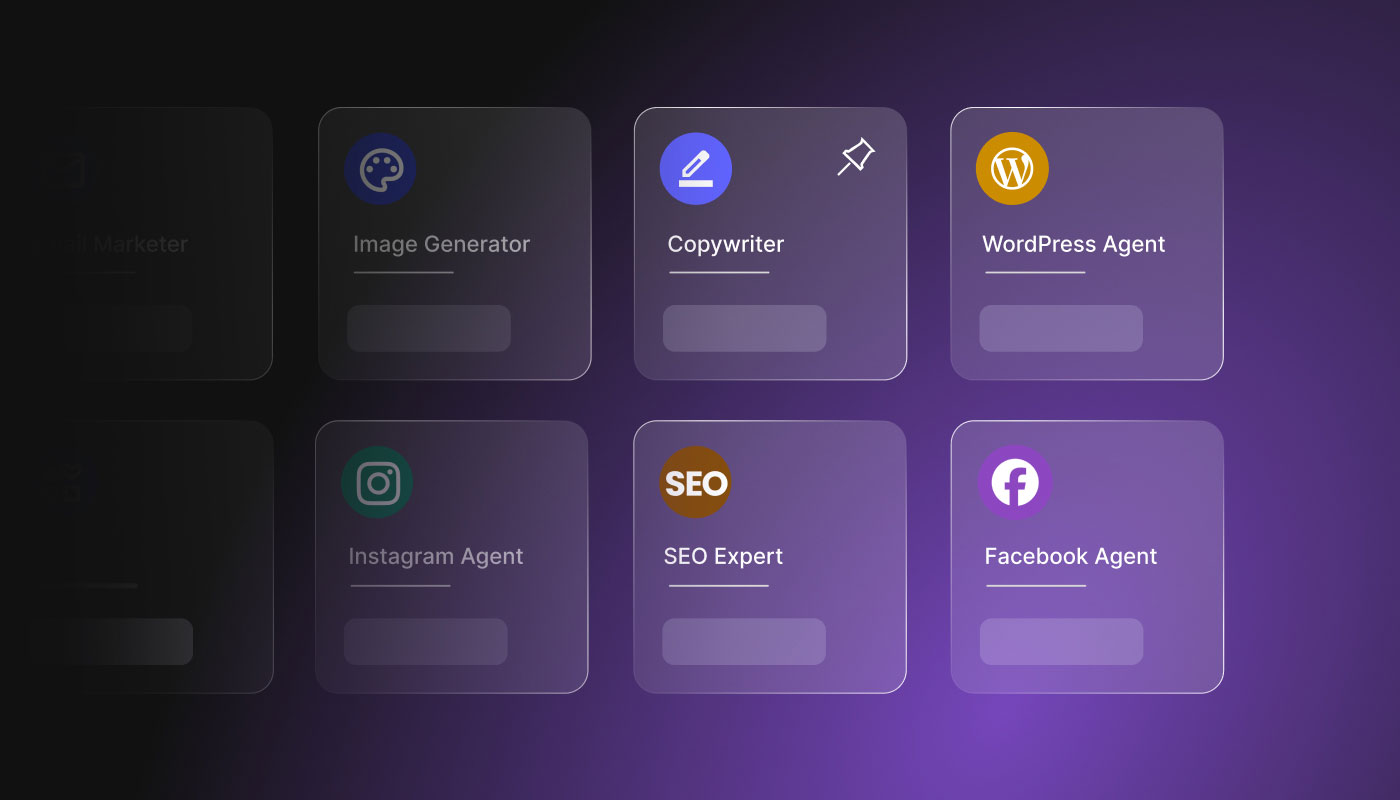
SiteGround AI Studio agents list, including AI Agent for WordPress, Copywriter, Social Media agents, and SEO expert

15 specialized AI agents

Activate more smart agents that execute real business tasks and help you boost productivity and scale without hiring.

Get up and running in minutes

Three steps to connect any WordPress site - no migration, no technical setup required.

Sign-up form to start using SiteGround's AI agent for WordPress
STEP 1

Sign up for AI Studio

Create your SiteGround AI Studio account and start your 14-day free trial. This is your central AI workspace - where the agent and all other tools live.

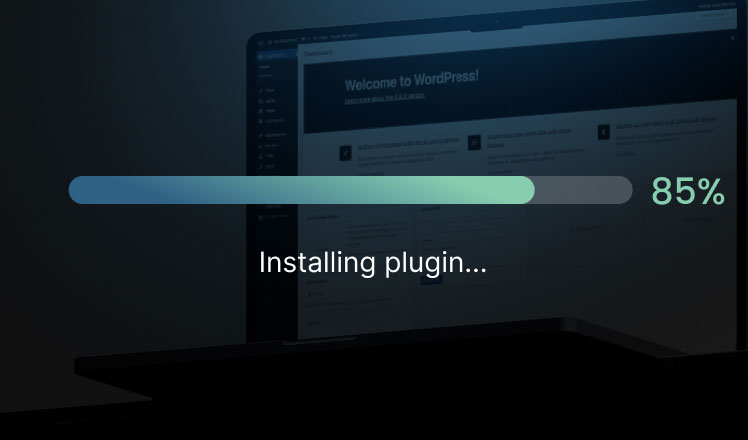
AI Agent for WordPress installing plugins to keep sites updated and secure
STEP 2

Connect your WP

From your WordPress admin > Connectors connect AI Studio by SiteGround as your AI connector by pasting the unique connection key from your AI Studio account.

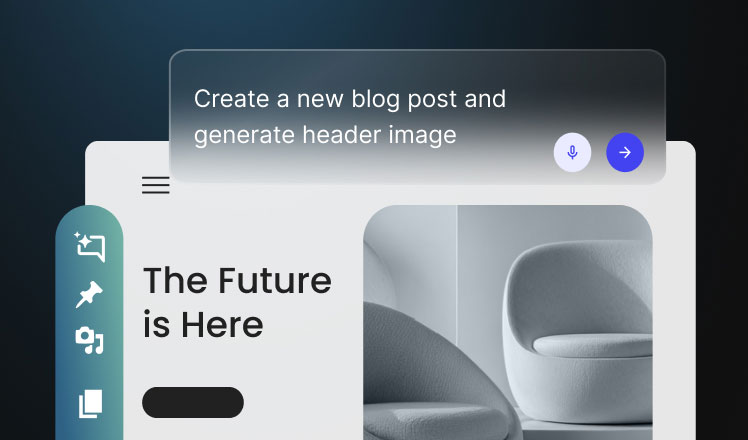
AI Agent for WordPress creating a new blog post and generating a header image from a chat prompt
STEP 3

Start managing with AI

Once AI Studio gets connected, the AI agent for WP will be automatically activated. You can then chat with the agent both from your WP admin and from the AI Studio interface.

Previous slide
Next slide

Activate your AI agent for WordPress for free

Sign up for AI Studio to activate your agent and try free for 14 days.

100,000 tokens

Leading AI chat models

File directory & Chat history

AI agent for WordPress

10GB Storage

Voice-to-text

14 business/marketing AI agents

Social media connector

Add tokens any time

Limited-time offer

Start free

Frequently asked questions

  • What is SiteGround's AI Agent for WordPress?

    SiteGround's AI Agent for WordPress is a specialized WordPress assistant in SiteGround AI Studio that connects to your WordPress site and lets you run WordPress tasks using normal chat prompts. It connects through the SG AI Studio plugin.

  • What WordPress tasks can the AI Agent handle?

    It can manage WordPress with AI by creating, editing, and publishing posts and pages. It can manage media, comments, categories, and tags. It can install, audit, and bulk update WordPress plugins and themes. It can enhance WordPress SEO by using AI to generate SEO titles, meta descriptions, keywords, alt text, and captions. It can help with basic troubleshooting. It can manage users and roles and update core WordPress settings.

  • Does SiteGround's AI Agent for WordPress work with WooCommerce, and what can it do?

    Yes. SiteGround's AI Agent for WordPress works with WooCommerce and acts as a powerful WooCommerce AI assistant. It creates and edits products, runs bulk catalog and price updates, manages orders, and displays customer and order details. It also generates WooCommerce sales reports for a specific period, like this week, last month, this year, or any custom date range you set.

  • Can I manage multiple WordPress sites at once?

    Yes, if you connect multiple sites to AI Studio, you can run many tasks across several WordPress sites from one chat, like rolling out plugin updates, adding users, standardizing settings, or applying bulk content edits.

  • Can I use the AI Agent for WordPress if my site isn't hosted on SiteGround?

    Yes. You can use SiteGround's AI Agent for WordPress on a site hosted elsewhere by connecting that site to SiteGround AI Studio with the SG AI Studio Agent WordPress plugin.

    In AI Studio, open Profile → Connectors → WordPress → Connect, choose Add External Website, enter your domain, and copy the connection key. Install and activate the plugin on your WordPress site, click Connect, paste the key, and confirm. For the step-by-step setup, see How to Connect an External WordPress Website.

    After connection, you can manage WordPress with AI from AI Studio or from the chat in WordPress Admin.

  • Is the AI Agent for WordPress included for free with SiteGround?

    Yes. SiteGround clients get the Essential AI Studio plan activated for free, which includes the AI Agent for WordPress and a monthly token allowance of 20,000 tokens.

  • What is Power Mode in the AI Agent for WordPress, and when do I need it?

    Power Mode is a safety feature. It's off by default and is required for higher-impact actions like deleting content, plugins, themes, users, and products, making bulk changes, changing certain general WordPress settings, and some WooCommerce order actions.

  • How do I connect AI Studio to WordPress, and what are the requirements?

    You need an active SSL certificate on the WordPress site. In AI Studio, go to Profile → Connectors → WordPress → Connect to link your SiteGround-hosted WordPress sites to the AI Agent for WordPress and start managing WordPress with AI. See the SiteGround-hosted setup steps.

    If your site is hosted elsewhere, you add it as an external website in AI Studio, generate a connection key, install the SG AI Studio Agent plugin on that WordPress site, and paste the key to complete the connection. For the step-by-step setup, see How to Connect an External WordPress Website.